Tools I use to write and teach
Everyone changes the tools they use, in any job. Writing and teaching is no different - the tools and software I used to use 5 years ago, I'm not using today.

Changing the tools that I use for writing and teaching is partly because I’m no longer running around to teach classes (so I no longer need the Bluetooth speakers and mini-projector), but also because my software requirements have changed.
Software tools change so quickly
Having studied computer science and worked in two software development companies, I know how quickly software can develop. And how it can lag behind or at worst, stop working.
One of my favourite text editors, TextWrangler, does not work on macOS Catalina. While tool changes are often annoying, especially you are when forced to change, they will continue to happen.
I highly recommend the book The Bullet Journal Method as it has turned my work day completely around so that I am much less overwhelmed and confused.
Handouts for teaching
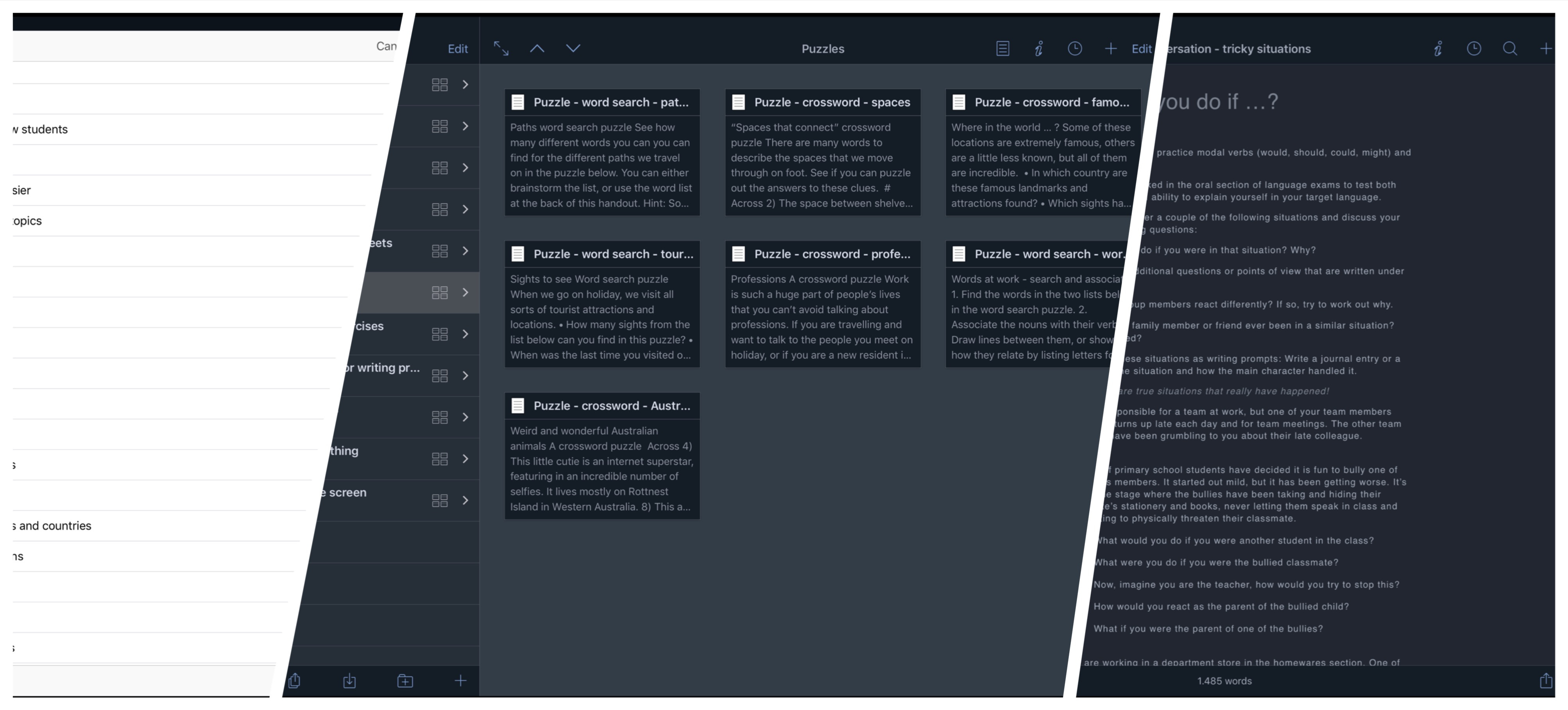
I’m using Scrivener to create my teaching resources (and all of my writing projects). Once I my draft is ready to be published, I copy and paste it as text into a pretty Word template. Then I add the formatting, images, etc. and publish it to PDF.
When I started crafting the PDF teaching resources for Patrons, this was a tedious process - I hadn’t used Word in years, let alone styles. But, now it feels a lot easier, and I can focus on the creation (the fun part!)
I also use Scrivener for my other big writing projects both personal and work-related. Occasionally, I’ll write in Google Docs or Word so that clients can suggest changes.
For diagrams, I use the online draw.io editor. I have been the draw.io technical writer for many years now writing both documentation and blog posts, including when I first moved to Germany, so I may be a tad biased - but I truly love this tool!
Usually, I use the web version to create/update diagrams, and then the integrations with the MS Office and GSuite apps. This means I no longer have to generate and paste in images whenever I update the diagrams.
For invoices, receipts, and contracts, I have custom OpenOffice templates on the Mac, in a similar style as my teaching materials.
For Patreon content, I typically write an outline in Scrivener or directly write in Patreon’s editor if I’m feeling brave. I’m in the process of moving my Word templates to Open Office for ESL teaching handouts.
I remember a friend who tried to convince me that themed templates looked more professional. I’m sorry to say I resisted for years, but I’m definitely a convert now.
Crosswords and word search puzzles
I’m love Puzzle Maker, an app for macOS. It makes creating word search puzzles and crosswords delightfully quick and easy. All I need to do then is to save it as an image and then drop it into a document and publish.
I have an archive of puzzles and word games for English language students and teachers on my Patreon.
Screen captures and photos
Definitely SnagIt for screen captures, explanatory gifs and short videos - with a custom annotation style for each client/project to match their corporate colours.
I’m looking for a better video creation tool - it must work on macOS, Linux and Windows though.
For professional quality photos… I was using an old standalone version of Lightroom that was a nightmare to install on the new computer, earlier this year. With how little I need to use it, Adobe’s subscription fee is unaffordable.
If you have any suggestions for affordable photo management and editing software that is also cross platform, please let me know!
I’m currently sticking to Apple’s built-in Photos app (cross-device cloud functions are too convenient) for library management, Affinity Photo for editing, and SnagIt for screenshots.
Websites
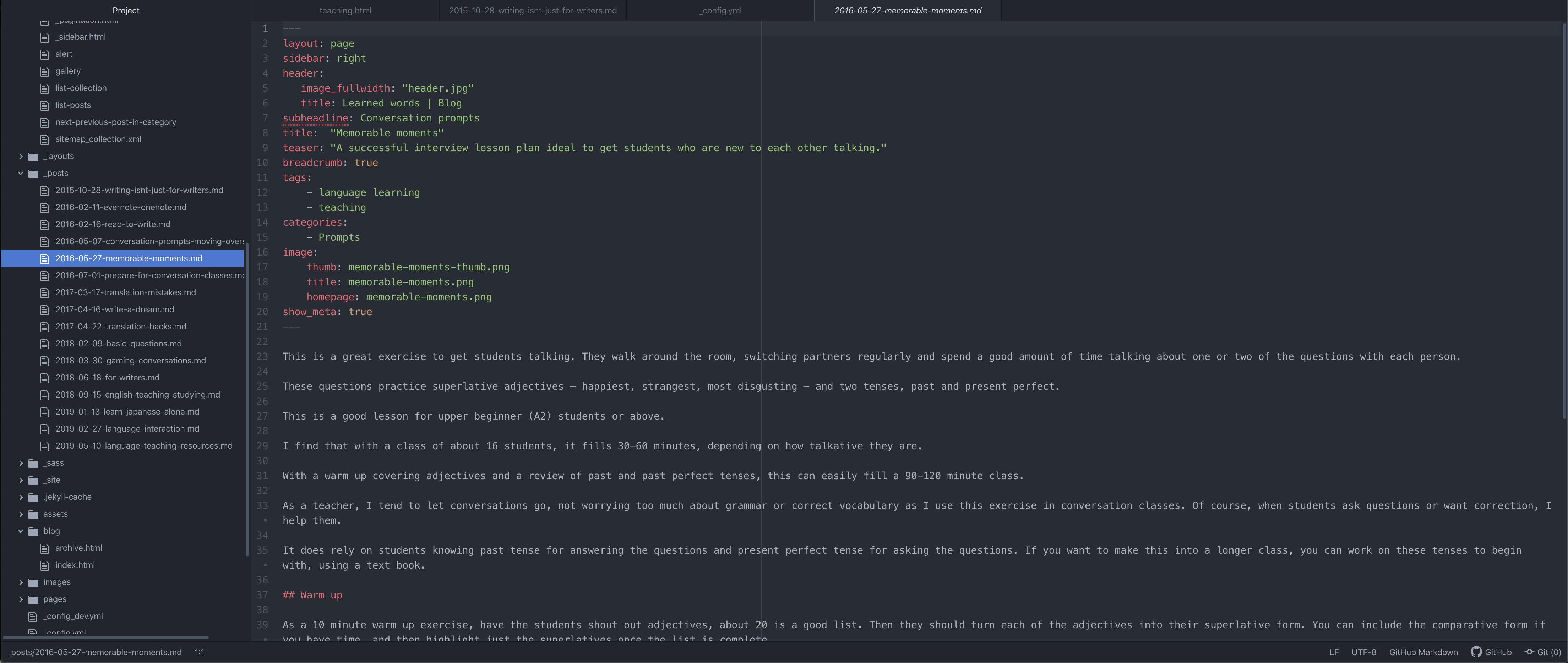
I’m fed up with WordPress being so unstable and breaking things (as mentioned in a previous post). So, I’ve been working on getting something local and easy to write in:
- Markdown, HTML and text in SubEthaEdit and VSCodium, but previously in Atom and VSCode
- Compiled into a static site using Jekyll with the Chirpy theme.
- Copied via FTP using FileZilla to my web host
Social media and messaging
I usually use the web interfaces for the social sites I need to post semi-regularly on, or at least maintain a profile on. I used to auto-post Instagram photos to Buffer and from there to Twitter using an ifttt trigger. I used to have many of these triggers before ifttt switched to paid subscriptions, but haven’t found a decent automation tool to replace it yet.
I have tried to limit social apps to a minimum in recent years.
The array of messenging apps I have to use to keep in contact with clients and students is overwhelming: Upwork, Wire, Signal, Telegram, Facetime, Skype, Google, Facebook, Whatsapp, Line, Discord, Whereby, …
Most of these apps are no longer used on a day-to-day basis, as most clients have disappeared - they prefer to use AI generation tools for writing, editing and translation, despite the errors that are produced in their content.
Administrative tools
Task and meeting tracking
For my clients, I use whatever system they are using - PivotalTracker, Asana, Monday, Jira, ContentPress in WordPress, Basecamp, Confluence, email, chat software, GitHub, Trello, … Of course, using so many systems means I never have an overview.
I used to use RememberTheMilk, Toodledo, Apple’s Reminders, Todoist, Evernote, OneNote, … but I found I typically forgot to update or check yet another digital task list.
Feeling completely overwhelmed and confused about what I was doing for whom, and when it was due by, and feeling like I wasn’t getting anywhere, I turned to The Bullet Journal Method.
These days, I love using paper and pen for my overview. I include the big tasks and appointments in a really simple bullet journal. There is something supremely satisfying about physically checking a task off, or crossing it out. And, I can leave it out on my desk where I can always see it.
Meeting notes are similar - they go first in the bullet journal, then in their final system for all team members to see.
I also use the bullet journal to track creative projects and various aspects about my health situation.
Time tracking
I have several clients, all with a number of different projects that I need to book the time I spend on. I used to just write this in a spreadsheet, but it got so complicated and tedious this year, that i needed to look for a better solution, especially for invoicing.
Right now, I’m using Working Hours with Dropbox as my sync platform, as it works well on mobile and multiple operating systems.
Invoicing and contracts are done now in Open Office using a template.
Password management
I use 1Password for one client, but find it to be unreliable, especially across devices and where the build in macOS password tool overrides the 1Password browser plugins.
Now if only Safari would work perfectly on all websites …
License keys and other important information
While I used to store these duplicated and backed up in OneNote, Safari bookmarks, and in my bullet journal, organised per client/person, they are now all stored in markdown text files, with recovery keys printed out for extra security.
Document sharing
I’m happy to say, it’s almost never via email now! I use the basic Dropbox plans which lets me have shared folders per client/person, as well as for synchronising Scrivener and Working Hours between iOS and macOS and Windows. It’s a tad annoying that I’m limited to so few devices though.
I also used to use GSuite for individual files (guest posts, etc.), and OneDrive for shared OneNote notebooks with family, but have removed content from these locations when Google and Microsoft decided they wanted to ingest it to train their AI tools.
Now, almost everything is in Markdown or OpenOffice on my local computer, backed up via iCloud and/or Dropbox.
That was a dizzying number of tools, and the number of them rarely seems to decrease. What are some of your favourites?